
Package Chaos Controls
First-person comfort for a game that is mostly looking at cardboard from six inches away.
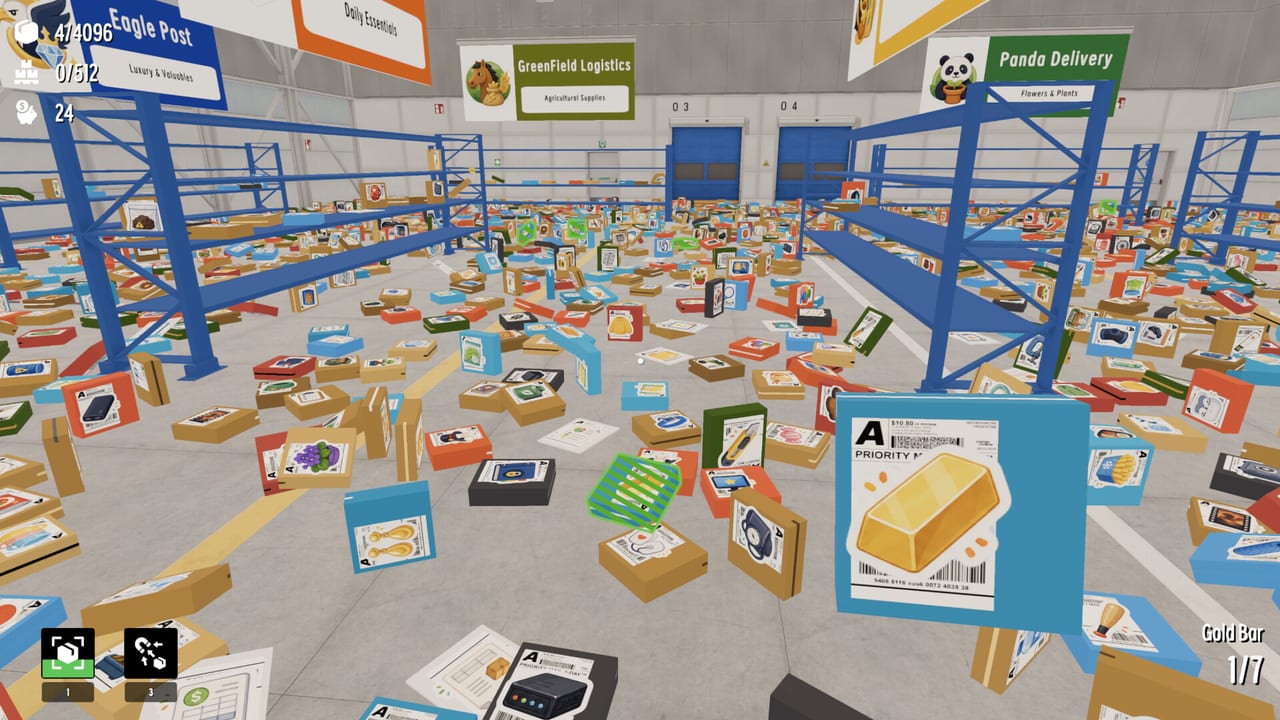
Package Chaos is a first-person warehouse game. That means most of your time is not spent in menus. It is spent lining a camera up with a label, grabbing a carton, rotating it until the handling mark is honest, and putting it down without knocking a fragile stack. FunTap Games lists full controller support on Steam, including Xbox, DualShock, and DualSense, plus custom volume controls. This page is about making that loop comfortable so you can last 4,096 packages.
Exact face-button labels can differ by pad and by your Steam Input layout. Check the in-game settings after launch and treat the table below as the jobs you need bound, not as a carved tablet. If a bind fights you, change it on day one. A cozy game still wrecks wrists when every box asks for a poorly placed modifier.
New to the warehouse? Pair this page with Getting Started. If you already walk fine and still mis-file boxes, the problem is inspection, not the stick — open how to sort.
What you need bound
Think in jobs, not in WASD mythology:
- Move — walk the aisle without sliding through shelves.
- Look — aim the camera at logos, labels, and marks. This is the real skill.
- Interact / pick up / put down — the grab. You will press this more than jump, if jump even exists for you.
- Rotate or inspect — if the build lets you turn a box in hand, bind it somewhere you can hold while strafing.
- Crouch or lower camera (if present) — low shelf rows are where fragile goods hide.
- Pause / menu — the Skills board (Gold, Magnet Hand, walk, sprint, carry). You will visit skills often enough that the menu key should not be a stretch.
- Hotbar 1 / 2 / 3 — official shots show three skill slots on the bottom left. Bind them where a pad bumper or number keys will not drop the carton in your hand.
On mouse and keyboard, a typical first-person mapping is movement on the left hand and look on the mouse, with interact on a close key. Lower mouse sensitivity until you can read a small handling mark without overshooting. This is not a flick shooter. High DPI that feels heroic in other games will make you miss the one logo that actually matches.
Controller notes
Steam’s store page is explicit: full controller support, Xbox controllers, PlayStation DualShock, DualSense. If you prefer a pad on the couch, use it. DualSense players should confirm in Steam Input whether adaptive triggers are mapped to anything meaningful; FunTap listed DualSense support, but a cozy sorter does not need to imitate a shooting game.
Practical pad advice:
- Put look on a stick you can micro-adjust. Labels are small.
- Put grab on a trigger or bumper you can tap without dropping analog look.
- Keep menu on a face button you will not hit while rotating a box.
- If Steam Input offers a community layout after launch, try it only after you understand the default. Random community maps are how people lose interact.
PlayStation and Xbox glyphs will differ. The wiki will not pretend a Japanese indie pad map is a Street Fighter numbered list. Open the settings overlay, screenshot your binds, and keep them until stacking becomes muscle memory. The stacking guide assumes you can place a box on purpose.
Comfort settings that actually matter
Field of view. If the game exposes FOV, a slightly wider view helps you notice a matching logo at the edge of an aisle. Too wide and labels shrink. Start in the middle.
Look sensitivity. Lower than your shooter main. You inspect, you do not track heads.
Volume. Custom volume is listed as an accessibility feature. Separate effects from music if you can. Cardboard impacts should tell you that you clipped a stack; music should not hide it.
Vibration. Useful as a “too heavy” or collision cue if FunTap wired it that way. If vibration only exists to rattle the DualSense while you tidy, turn it down. Too Heavy is a real achievement; you want that feedback to be readable, not noisy.
Windowed vs exclusive. Warehouse games often run for hours. Borderless windowed is kinder if you also keep the sorting checklist on a second monitor.
Accessibility and pace
Steam tags Package Chaos as playable at your own pace and playable without timed input. That is not flavor. There is no QTE, no night-shift clock, no “the truck leaves in 40 seconds.” Your hands can rest. Bind interact so a single press starts a grab; you should not need a 12-input combo to put a lamp carton on a shelf.
If looking up at high bays hurts, take breaks. 4,096 packages is a long-haul number. 1,000 Stocked is a healthier session goal than “finish the building tonight.”
Common control mistakes
- Treating sprint as the default. If a sprint exists, use it between bays, not while carrying fragile goods. The tips page is about protecting those shipments.
- Rebinding interact next to jump. You will throw boxes into the lighting rig.
- Ignoring Steam Cloud. Cloud saves are listed. Enable them so a controller experiment does not eat a Sunday of stocking.
- Fighting the camera instead of the marks. If two boxes look identical until you rotate, that is a sorting problem. Go back to how to sort rather than cranking sensitivity.
A five-minute bind test
After you set controls, do not start a 400-box project. Do this:
- Walk a full aisle without clipping a shelf corner.
- Pick up a small box, rotate until you have seen every face, put it down on a clear shelf cell.
- Pick up a larger carton and walk ten steps. If the camera or stick fight you, lower sensitivity now.
- Open the skill or pause menu and close it without dropping the box.
- Only then start the loop in Getting Started.
Package Chaos is a looking game wearing a walking game’s camera. Bind for the looking. The warehouse will still be there when your hands are comfortable — FunTap did not put a timer on the door.
Frequently Asked Questions
Quick answers to the most common warehouse questions.
Does Package Chaos support controllers?
Yes. Steam lists full controller support, including Xbox, DualShock, and DualSense. Confirm glyphs in the in-game settings after launch.
What are the default keyboard binds?
Check the settings menu in your build. This page lists the jobs you must bind — move, look, grab, inspect — because FunTap can still tweak defaults after launch day.
Should I play with mouse or a pad?
Mouse is usually better for reading small labels. A pad is fine on the couch if you lower look sensitivity. Comfort beats identity.
Is there a timer on controls?
No. Steam tags the game as playable without timed input. Bind for comfort, not for speedrunning a clock that is not there.